
Call Recording Export
Recordings are downloaded and saved automatically right after a call ends — straight from Genesys Cloud to your designated file storage, in your chosen format.
Supported Audio Formats
- WAV (PCM)
- WAV (ULAW)
- WEBM
- OGG Vorbis
- OGG Opus
- MP3
- M4B (AAC audiobook with chapters)
Stereo Channel Merging
- Agent and customer on separate mono channels
- Automatically merged into a single stereo file
M4B Audiobook Conversion
- Converts recordings to M4B (AAC)
- Embeds chapter markers per participant segment
- Source bitrate preserved automatically
MP3 Chapter Tagging
- Writes ID3v2 CHAP/CTOC chapter tags to MP3 files
- Chapters reflect per-participant call segments
- Compatible with chapter-aware audio players
Advanced Audio Processing
Optionally applied per export profile before the final file is saved. Processing parameters are set in code and apply uniformly across all profiles.
Silence Trimming
- Remove silence from the head and/or tail of recordings
- Enabled per profile in the Admin webapp
- Mutually exclusive with chapter export
Noise Reduction
- Spectral noise reduction
- High-pass and low-pass band filtering
- Enabled per profile in the Admin webapp
Loudness Normalization
- EBU R128 normalization (
loudnorm) - Consistent volume across all exported recordings
- Enabled per profile in the Admin webapp
Filter Chaining
- All three filters combined in a single pass
- Each filter independently enabled per export profile
- Order: silence trim → noise reduction → normalization
Precision Audio Segment Extraction
Export only the audio that matters. Each export profile can filter by participant type (purpose) and call segment type — keeping only the relevant portions of each recording.
✂️ Configure What Gets Exported From Each Recording
The engine splits, filters, and optionally concatenates the result into a single clean audio file. Both filter axes are configured per profile in the Admin webapp.
👤 Filter by Participant Type (ParticipantPurposesToExport)
Select which participant roles contribute audio to the exported file. Leave empty to include all participants.
→ Only the audio segments with agents are extracted. IVR and ACD parts of the call are excluded entirely.
🗂️ Filter by Call Segment Type (CallSegmentsToExport)
Select which phases of a call to include. Leave empty to include all segments.
✅ Typically included
❌ Typically excluded
→ Only the live conversation time is exported. Hold time, ring time, dialing, and queue wait are stripped out.
📌 Example: ParticipantPurpose = agent & CallSegment = interact
The Genesys Cloud Interaction Detail Timeline below shows a real call. Orange arrows pointing right identify the rows where ParticipantPurpose = agent — only those participant tracks contribute audio to the export. Orange arrows pointing down identify the columns where CallSegment = interact — only those live-conversation time spans are included.
The intersection of the two filters — the agent's interact segments — is what gets exported. Dialing, alerting, hold, IVR, wrapup, and all customer-side audio are stripped entirely, leaving a tight, clean agent-conversation file ready for QA review or speech analytics.
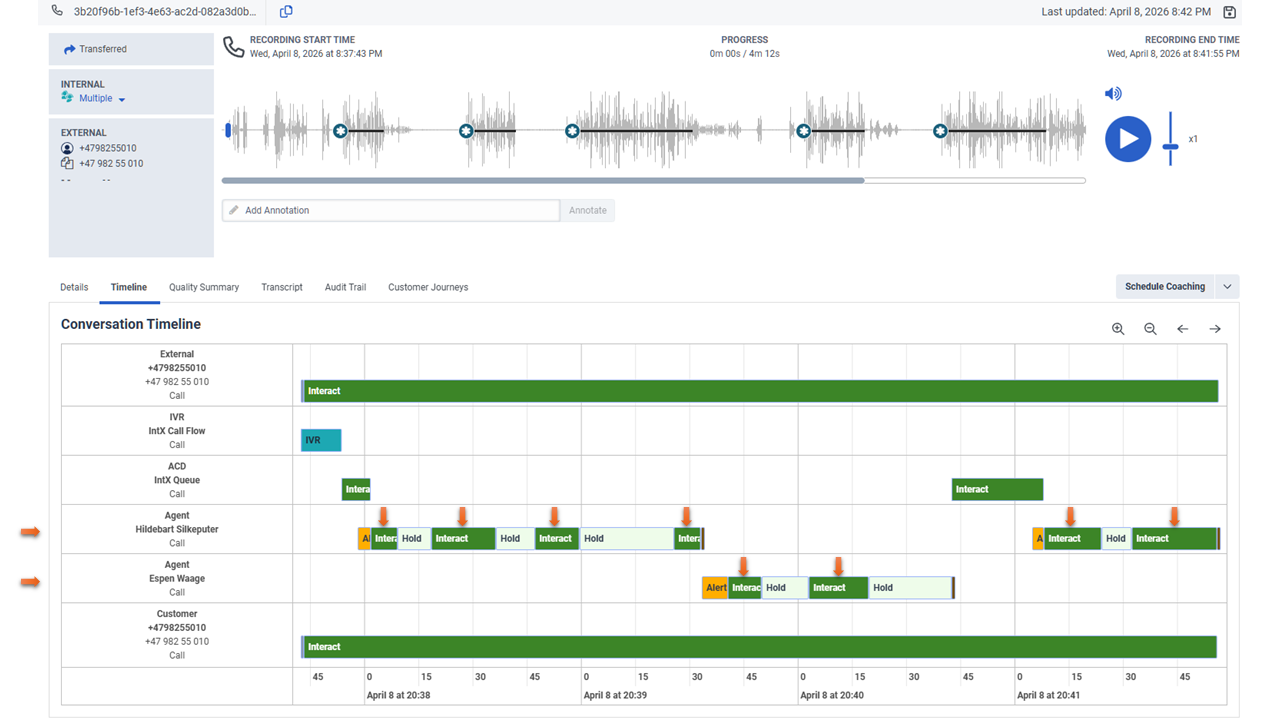
Genesys Cloud Interaction Detail Timeline — arrows mark agent participant rows (left) and interact segment columns (top). Click to view full size.
Click anywhere to close
🔧 Split & Reassemble Options
Individual Segment Files
- Each matching segment saved as a separate audio file
- Filenames include participant name, segment type, and ordinal
- Useful for per-segment analytics or labelling
Concatenated Output (ConcatenateParticipantSegments)
- Matching segments joined back-to-back into one file
- Overlapping segments resolved automatically (longest wins)
- Requires at least one purpose or segment filter selected
Chapter Export (ExportChaptersForParticipantSegments)
- Segments embedded as chapters in the output file
- Supported for MP3 (ID3v2) and M4B metadata
- Mutually exclusive with silence trimming and segment filtering
Transcription Export
Export Genesys Cloud speech-to-text transcriptions in nine industry-standard formats. Low-confidence speech segments are filtered out automatically in code, keeping only high-quality recognized speech in the exported file.
| Format | Extension | Best For |
|---|---|---|
| RAW | .json | Full Genesys Cloud transcript (indented JSON) |
| AWS | .json | Amazon Transcribe-compatible JSON |
| TTML | .ttml | W3C Timed Text — broadcast / media workflows |
| SRT | .srt | SubRip subtitles — video players, editors |
| VTT | .vtt | WebVTT — HTML5 video, streaming players |
| Format | Extension | Best For |
|---|---|---|
| SAMI | .smi | Microsoft SAMI — Windows Media Player |
| CSV | .csv | Spreadsheet / data pipeline consumption |
| AUDLAB | .txt | Audacity label tracks for audio annotation |
| GCTXT | .txt | Human-readable Genesys Cloud transcript layout |
Dynamic File & Directory Naming
Every exported file — audio and transcription alike — is named and placed using a template engine driven by live conversation data. Templates are set per profile and apply to both the filename and, when using PathTemplate mode, the sub-directory path itself.
📁 Directory Structure Modes
DirectoryStructureMode controls how sub-directories are created beneath DestinationRoot. The time-bucketed modes use Interval and TimeZoneOffset to determine the folder granularity.
Hierarchical
Nested year / month / day / hour (/ minute) sub-folders based on recording time and the configured Interval.
Example: \\srv\share\2026\03\24\14\
Flat
Single-level sub-folder whose name is a combined timestamp string derived from the recording time and Interval.
Example: \\srv\share\20260324\
NoSubdirectory
All files written directly into DestinationRoot. No sub-folder is created.
Example: \\srv\share\
PathTemplate
The sub-path is generated from the PathTemplate field using the same placeholder engine as filename templates.
Example: \\srv\share\Sales\{Acd.Name}\
🔖 Template Engine Overview
Templates use the syntax {PlaceholderName} — or
{PlaceholderName|Function1;Function2} to apply one or more transformations.
Placeholder categories include:
Conversation & Participants
- Conversation ID
- Agent, customer, ACD and IVR names
- Call direction (inbound / outbound)
- Connect timestamps per participant
- Any customer participant attribute by key
Recording & Transcript
- Recording ID, start time, end time
- Media subtype and subject
- Associated user name / username
- Transcript ID and start time
- Output file extension and format name
System & Utility
- Export profile name
- Machine name
- Current date/time
- New GUID, random number, sequence number
Formatting Functions
- Date/time formatting with .NET format strings
- UTC conversion and fixed offset adjustment
- Upper / lower case conversion
- Left / right padding
- Random number range
All timestamp placeholders are adjusted to the profile's TimeZoneOffset before substitution. Any characters that are illegal in Windows filenames are automatically replaced with underscores.
💡 Example Templates
{Recording.StartTime|Format(yyyyMMdd_HHmmss)}_{Agent.Name}_{Conversation.Id}.{FileExtension}
20260324_143022_Jane Smith_a1b2c3d4-....wav{CustomerCall.Direction|ToUpper}_{CustomerCall.Other.Name}_{Recording.StartTime|Format(yyyyMMdd)}.{FileExtension}
INBOUND_+4791234567_20260324.wavPathTemplate:
{Acd.Name|ToLower}\{Recording.StartTime|Format(yyyy)}\{Recording.StartTime|Format(MM)}TranscriptionFileTemplate:
{Conversation.Id}_{Transcript.StartTime|Format(HHmmss)}.{FileExtension}
\\srv\share\support\2026\03\ File: a1b2c3d4-..._143022.srt{CustomerCall.Attribute.CRMTicketNumber}_{Recording.StartTime|Format(yyyyMMddHHmmss)}.{FileExtension}
TKT-98765_20260324143022.wavNTFS Alternate Data Stream Metadata
Genesys Cloud conversation metadata can be written alongside each exported file as
NTFS Alternate Data Streams (ADS) — invisible to ordinary file operations,
zero impact on file size, and queryable by any tool that supports the
filename:streamname path syntax.
🗂️ Metadata Written Directly onto the Exported File
Each selected attribute becomes a named stream on the file itself — no sidecar files, no database. Audio and transcription files each have their own independently configured attribute set, both selected per profile in the Admin webapp.
Audio File Attributes
- Conversation and recording identifiers
- ACD queue name and ID
- IVR flow name and ID
- Customer participant name
- Recording start and end timestamps
- Media subtype and subject
Transcription File Attributes
- All attributes available for audio files
- Transcript ID and start timestamp
Attributes are written using the stream name as the attribute key —
for example, recording.wav:Conversation.Id holds the conversation GUID,
and recording.wav:Recording.StartTime holds the recording timestamp.
Read them with any ADS-aware tool:
Get-Item .\recording.wav -Stream *
Conversation.Id,
Acd.Name,
Recording.StartTime …
Get-Content .\recording.wav:Conversation.Id
a1b2c3d4-e5f6-7890-abcd-ef1234567890
Flexible Export Profiles
Each export profile is a self-contained, independently active configuration unit. Multiple profiles can run simultaneously — each watching different queues or policies, writing to different storage roots, in different formats, with entirely different processing and naming rules. Profiles are edited live in the embedded Genesys Cloud Admin webapp; changes take effect immediately without restarting the service.
Input Scoping
- Scope by queue name — watch one or many Genesys Cloud queues
- Scope by retention policy — capture all queues associated with a recording policy
- Both scopes can be combined in a single profile
- Optionally restrict to calls that included an agent participant
Independent Audio & Transcription Export
- Audio and transcription export are individually enabled per profile
- Each has its own output format, filename template, and ADS metadata set
- Both can be active simultaneously or independently in the same profile
Output Destination & Organisation
- UNC root path per profile — different profiles can target different shares
- Four directory structure modes: Hierarchical, Flat, NoSubdirectory, PathTemplate
- Time bucketing by interval from 1 minute to 1 year
- Per-profile time zone for all directory and filename timestamps
Conflict & Reliability Controls
- Five filename conflict strategies: AppendCounter, Overwrite, Ignore, ReplaceAndCopyTimestamps, Error
- Configurable processing delay before fetching new Genesys Cloud files
- Configurable retry count for transient API or network failures
- Export status written back to Genesys Cloud — prevents duplicate exports across restarts
Profile Lifecycle
- Each profile has an Active flag — inactive profiles are ignored entirely
- Profiles can be duplicated, renamed, and reordered in the Admin webapp
- All changes validated before saving; invalid profiles are skipped at runtime
- Duplicate profile names are detected and rejected at load time
Zero-Downtime Config Reload
- Configuration stored in a Genesys Cloud Architect Data Table
- Profile changes detected in real time via the IntX System queue
- New settings applied immediately — no service restart required
- Reload interval is itself configurable in the Admin webapp
Real-Time Genesys Cloud Integration
IntX Export Manager connects natively to Genesys Cloud via the official SDK — listening for call events in real time and writing export status back to the platform.
Real-Time WebSocket Triggers
- Subscribes to Genesys Cloud queue conversation event topics via WebSocket
- No polling — export starts the instant a call is fully wrapped up
- Handles any number of queues simultaneously
Automatic Token Refresh & Recovery
- Transparent OAuth token renewal — no downtime
- Automatic reconnection on WebSocket disconnect or error
Export Status Write-Back
- Records export status on Genesys Cloud conversation participant attributes
- Also writes to Conversation Custom Attributes (CCA) schema — visible in Genesys Cloud UI
- Fields: export type, status, timestamp, root path, filenames
- Prevents duplicate exports across service restarts — idempotent by design
Live Configuration Reload
- Configuration stored in a Genesys Cloud Architect Data Table
- Changes detected instantly via the IntX System queue
- New profile settings applied live — no service restart required
IntX Export Manager Admin
A full-featured configuration webapp embedded directly inside Genesys Cloud as a Client App integration — no separate portal, no VPN, no extra login. Open it from the Genesys Cloud Apps menu and manage every export profile live.
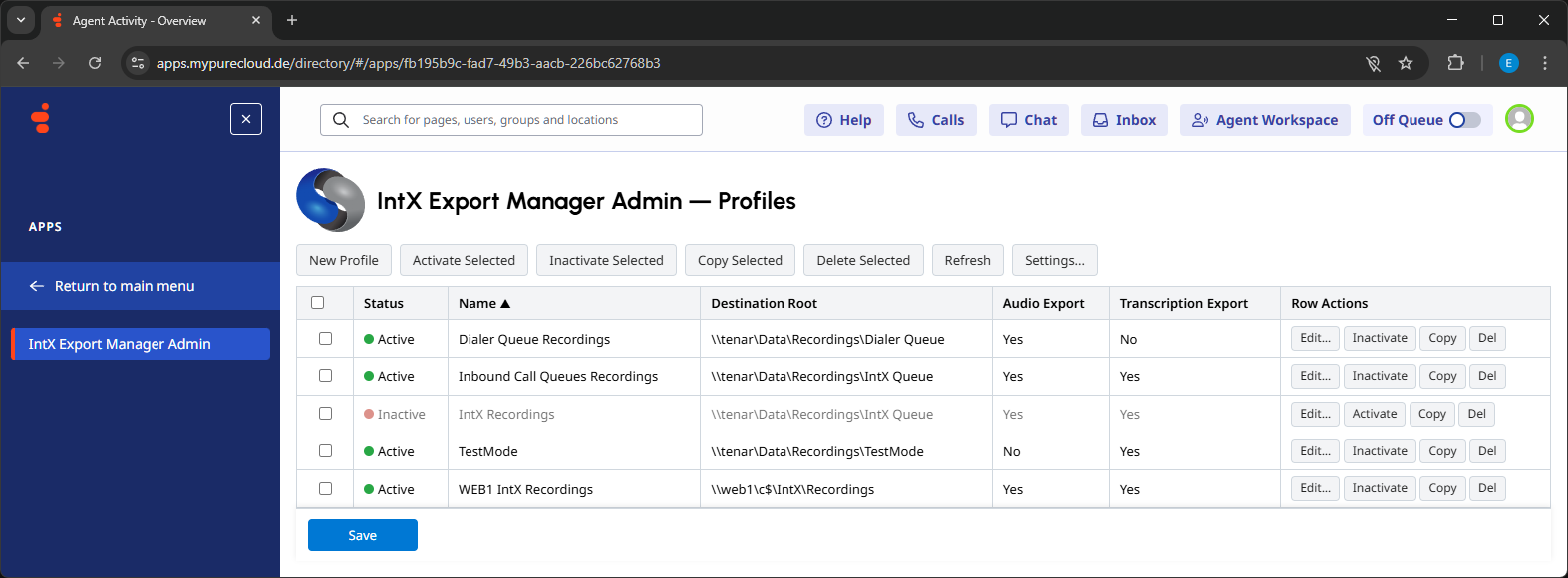
🔍 Click image to view full size
Click anywhere to close
Profile Management
- Create, edit, duplicate, and delete export profiles
- Reorder profiles with drag handles
- Enable / disable individual profiles instantly
- Profile names validated for uniqueness on save
- All changes validated before being written to the Data Table
Per-Profile Settings
- Input scope: queues and / or retention policies
- Output format, destination root, directory structure mode
- Filename and path templates with live preview
- Audio processing toggles: silence trim, noise reduction, normalization
- Segment and participant filtering checkboxes
- ADS metadata attribute selection for audio and transcription
Global Settings
- Configuration reload interval
Runs Inside Genesys Cloud
- Embedded as a Genesys Cloud Client App integration
- Accessible from the Genesys Cloud Apps menu
- No VPN, no extra login required
Zero-Downtime Updates
- Every save triggers an immediate config reload on the Windows Service
- Changes are live within seconds via the IntX System queue
- No service restart required
Secure Licensing & Credential Management
Hardware-Locked License
- License tied to the server's hardware ID
- Expiration date enforced via trusted time (Genesys Cloud server → NTP)
- Immune to local system clock manipulation
License Hot-Reload
- Drop a new license file into the install directory
- Service activates or deactivates immediately — no restart needed
- File system watcher with debounce protection
Credential Storage
- OAuth credentials stored preferably in Windows Credential Manager
- Falls back to Windows Registry (HKLM) if Credential Manager is unavailable
- As a last resort, credentials are stored in the application config file on disk
Professional One-Click Installer
A bootstrapper setup application guides the administrator through all setup steps — from prerequisites to a fully configured, running Windows Service connected to Genesys Cloud.
Prerequisites
Automatically installs .NET Framework 4.8 and Microsoft WebView2 Runtime if not already present.
Genesys Cloud OAuth Login
Admin authenticates to Genesys Cloud via OAuth Authorization Code flow inside the installer UI.
Genesys Cloud Setup
Creates the OAuth client, organization role with required permissions, and the embedded Admin App integration.
Data Table Provisioning
Creates the Architect Data Table and row used to store the export configuration JSON.
CCA Schema
Creates the Conversation Custom Attribute schema for writing export status back to Genesys Cloud.
IntX System Queue
Creates a virtual queue used for real-time configuration change notifications.
Credential Save
Saves OAuth credentials to Windows Credential Manager (with Registry and config file as fallbacks).
Service Install
Installs and starts the Windows Service under the configured service account.
License Activation
Hardware ID shown during setup. License file copied from a path chosen by the administrator.
In-Cloud Admin UI
- Embedded as a Genesys Cloud Client App integration
- Accessible from the Genesys Cloud Apps menu
- Edit all export profiles without leaving Genesys Cloud
Upgrade Support
- Major upgrade flow — installs cleanly over any prior version
- Downgrades blocked with a clear error message
- Same-version re-install allowed for repair scenarios
Ideal For
Contact Centers
Archive all Genesys Cloud call recordings to on-premises NAS, SAN, or file server storage automatically.
Compliance & Legal
Retain recordings and transcripts in your own controlled storage to meet regulatory or legal hold requirements.
Quality Assurance
Export agent-only audio segments — stripped of hold time, IVR, and ringing — for efficient QA review and scoring.
Speech Analytics
Feed clean, interaction-only audio and transcripts into downstream NLP, sentiment analysis, or BI platforms.
Research & Training
Build labelled speech datasets using Audacity Labels (AUDLAB) export with millisecond-accurate segment boundaries.